Wed, Apr 8, 2026
Global Edition
Exporting Tick Data from NinjaTrader 8: NinjaScript Guide for Traders
2026-04-08
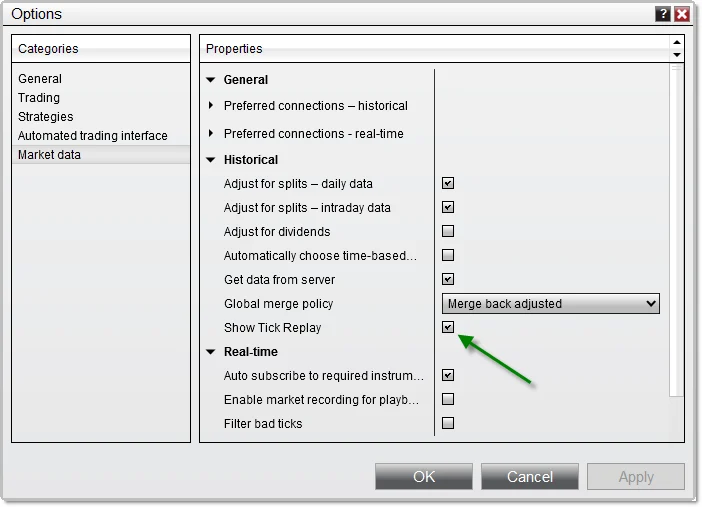
NinjaTrader users often require local tick data exports to conduct offline backtests, feed custom analysis tools, or migrate data to platforms like Python or MATLAB. Without this, reliance on live connections limits flexibility during strategy development or when internet access falters. This guide targets intermediate traders comfortable with basic NinjaScript, offering a scripted method to capture bid, ask, last price, and volume at the tick level.
The process hinges on NinjaTrader's extensible scripting environment, which allows real-time or replay-based data logging to CSV files. Expect exports in a standard format compatible with most data processing libraries. Before starting, confirm your setup meets requirements to avoid delays.
Prerequisites for Export
Activate a full NinjaTrader 8 license, as simulation mode restricts historical depth. Connect to a data provider like Kinetick or Continuum that supplies tick-level history—free trials suffice for testing. Download target instrument data via Tools > Historical Data Manager: select your instrument, set resolution to 1 Tick, specify date range (e.g., one trading day for initial tests), and click Download. Verify data availability by opening a 1-tick chart; bars should plot densely without gaps. Create an export folder like C:\NTTickExports\ with write permissions, as NinjaScript will append timestamped CSVs there.
NT8 stores tick data in proprietary .hcc files, inaccessible directly without tools. NinjaScript bridges this by hooking into the OnMarketData event during chart playback or live sessions. This method captures up to millions of ticks efficiently, outperforming manual screenshots or partial bar exports.
Building the Tick Exporter Indicator
Open NinjaTrader's NinjaScript Editor (Tools > Edit NinjaScript > Indicator). Create a new indicator named TickExporter. Paste the following code, adjusting the file path as needed. This script initializes a CSV writer on data load, logs each last-price tick with timestamp, bid, ask, close, and volume, then closes the file cleanly.
protected override void OnStateChange() { if (State == State.SetDefaults) { Description = "Exports incoming tick data to CSV"; Name = "TickExporter"; IsOverlay = true; IsSuspendedWhileInactive = true; } else if (State == State.DataLoaded) { string filePath = @"C:\NTTickExports\" + Instrument.FullName.Replace("/", "_") + "_" + DateTime.Now.ToString("yyyyMMdd_HHmmss") + ".csv"; System.IO.StreamWriter writer = new System.IO.StreamWriter(filePath); writer.WriteLine("DateTime,Bid,Ask,Last,Volume"); AddDataSeries(BarsPeriodType.Tick, 1); } else if (State == State.Terminated) { if (writer != null) writer.Close(); } }
protected override void OnMarketData(MarketDataEventArgs e) { if (e.MarketDataType == MarketDataType.Last) { writer.WriteLine(string.Format("{0:yyyy-MM-dd HH:mm:ss.fff},{1},{2},{3},{4}", e.Time, Bids[0][0], Asks[0][0], e.Price, e.Volume)); } }
Compile the script (F5). Ignore minor warnings; fix syntax errors immediately. This code uses the primary bars' bid/ask series, ensuring alignment with the tick event.
Running the Export Process
Launch a 1-tick chart for your instrument (File > New > Chart, right-click > Data Series > Tick (1)). Attach the TickExporter indicator (Indicators dialog > select and Apply). For historical export, enable Market Replay: right-click chart > Replay > select date range matching your downloaded data > Play at normal speed. The indicator activates OnMarketData for each historical tick, writing to CSV progressively.
Monitor the output folder during replay—file size grows steadily, indicating success. Pause or stop replay to terminate cleanly; NT8 calls OnStateChange.Terminated automatically. For multi-day exports, chain replays or extend the script to handle multiple sessions. Live market use works similarly but risks incomplete data on connection drops.
Process one instrument-day at a time
NinjaTrader 8 lacks a one-click tick data export, but custom NinjaScript provides a reliable solution for local backups needed in backtesting or external analysis. This tutorial details creating an exporter indicator, running it on historical data, troubleshooting issues, and validating output. Traders gain offline access to granular market data without ongoing platform dependency.
Other Posts

Understanding Backtesting: Its Relevance and Future Outlook in Trading
Apr 8, 2026
Understanding Risk Management in Trading: A Beginner's Guide
Apr 8, 2026
Beginner's Guide to Trading Strategies: 00:00 Key Open Explained
Apr 8, 2026
Understanding VWAP: A Trader's Essential Tool for Futures Trading
Apr 8, 2026

Apex Trader Funding vs FTMO: Which Prop Firm Is Right for You?
Apr 8, 2026

Understanding Google AdSense Rejections: Causes, Solutions, and Prevention Tips
Apr 8, 2026